Account Setup and Security
Registration and Login
Self-Registration
When creating a new account, in addition to standard personal details (name, email, password), you also need to provide an Account Name. This will be the name of your own organization (workspace) in the system.
After registration, the system starts a 7-day free trial period. To log in, you need to confirm your email address via the received email.
Invitation-Based Join
If you are invited to an existing organization, you only need to set your password by clicking the link in the received email. In this case, the name and email address are pre-filled and cannot be changed during registration, and no email confirmation is required.
Account Settings and Security
On the Account page, you can manage your own personal profile and login details.
Personal Data and Password Change
On the Account page, you can modify the following basic details:
- Basic Info: First name and last name.
- Login Details: The email address used for login and system notifications.
Changing Your Password: By clicking the Change Password button, you can change your login password at any time. For your security, the system will ask for your current password and the new one twice (to avoid typos). The new password must be at least 8 characters long.
(If you forgot your password, you can request a reset email by clicking the "Forgot password?" link on the login screen.)
Two-Factor Authentication (2FA)
Two-factor authentication adds an extra layer of security to your account on top of your password. Infinite∞Ad uses the Google Authenticator (or compatible time-based) app.
Activating 2FA
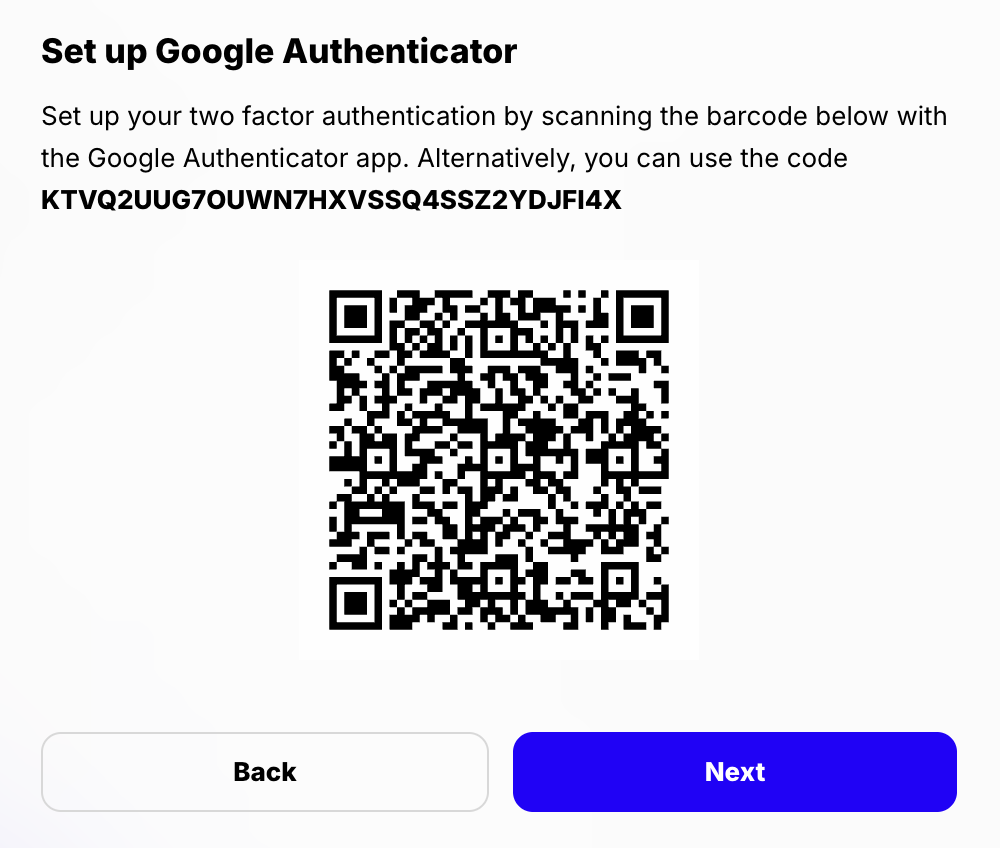
- On the Account page in your personal account settings, check the Enable Google 2FA option.
- Scan the displayed QR code with the authenticator app (or enter the secret key manually).
- Enter the 6-digit code generated by the app to confirm.
Marking a Device as Trusted: At login, you can check this option so the system won't ask for a 2FA code again in that browser for 30 days. Never use this on a public computer!
IMPORTANT: If your organization's administrator has made 2FA mandatory, you won't be able to access the application's features until you set it up, and the option to disable it will also be locked for you. If you lose your 2FA device, you'll need to contact customer support to restore access.